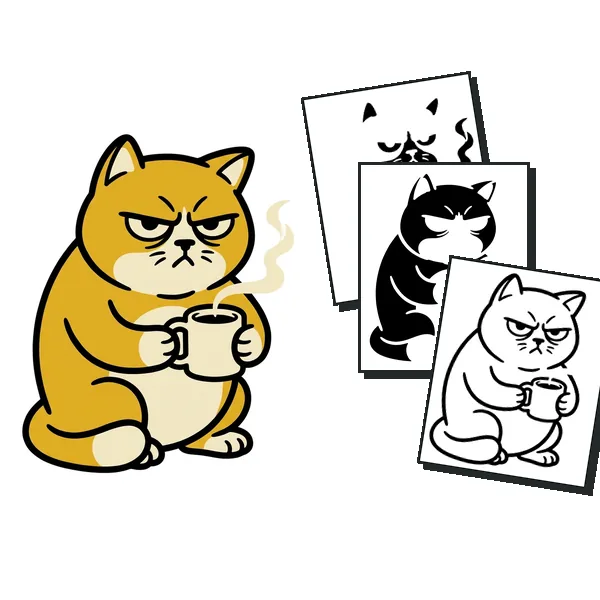
How to turn a PNG into a layered SVG, in color
The short answer
Pick Color, drop in your PNG, then keep the SVG and download it. You get one layer per color, or a group for each separate thing in the picture.
The preview is free and needs no account. Your first 10 pictures are on us.
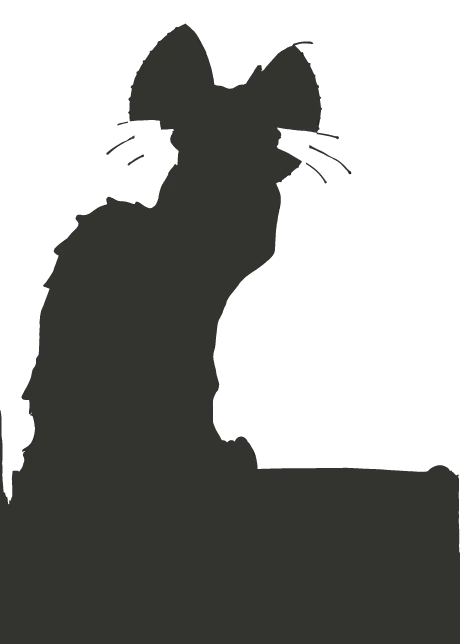
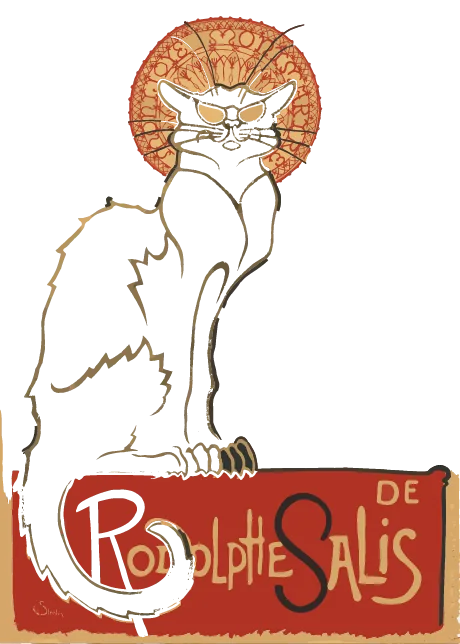
What "layered" means here
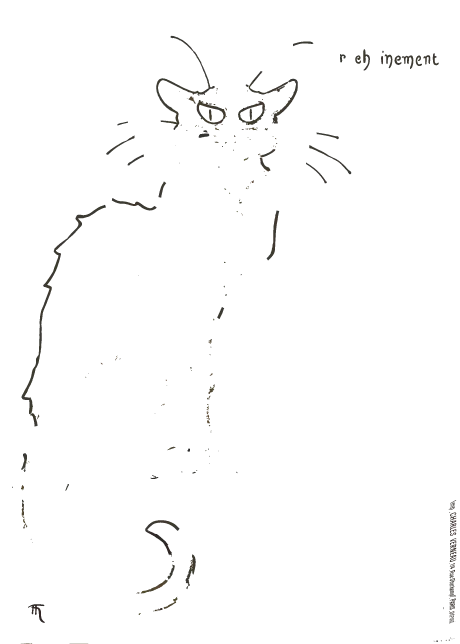
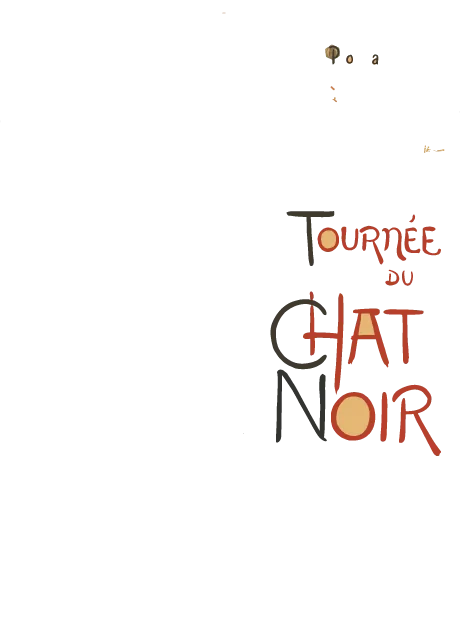
You can download it two ways: one layer per color, on any flat picture, or by group. Inside a group, the big base shape sits at the bottom, with shadows, highlights and lines on top.
A sheet of stickers or clip art usually comes apart cleanly, each thing in its own group.
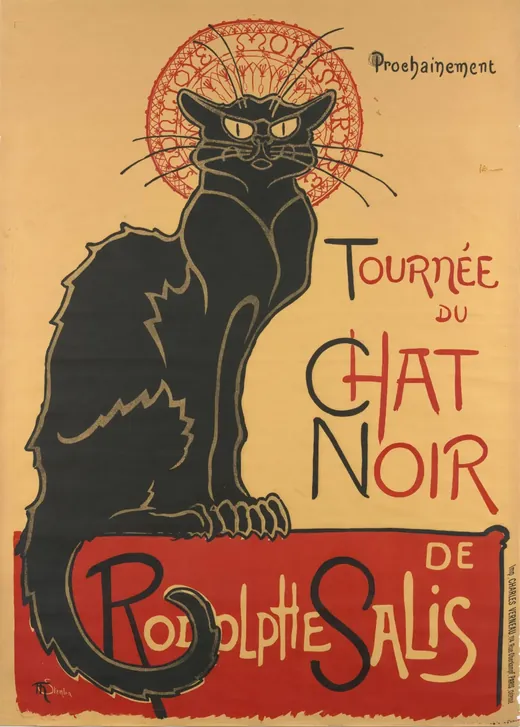
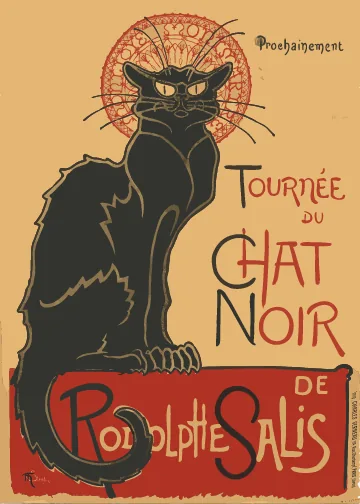
Zoom this poster to 400 % and two colors still meet without a white line between them.
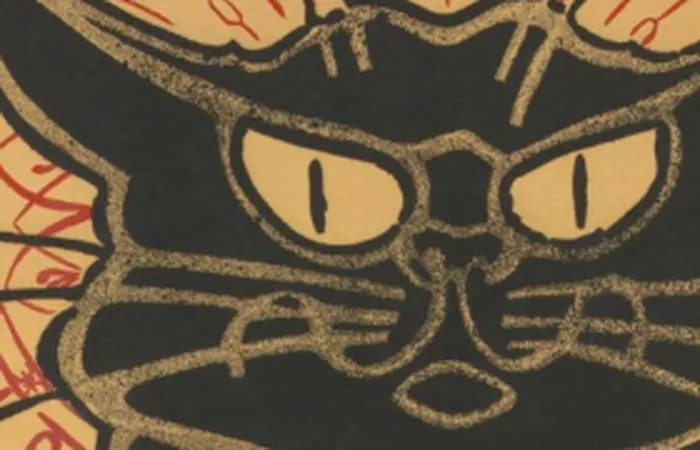 400 %
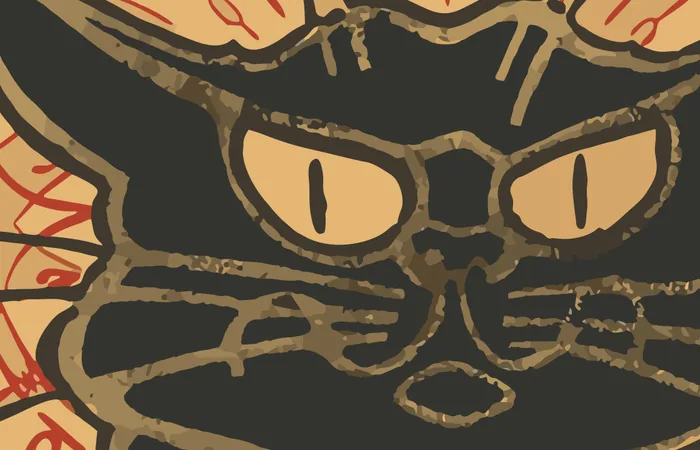 400 %
Which pictures work best
Pictures with flat colors and clear edges give the cleanest layers: clip art, logos, AI art, old prints and posters. Use the biggest version of the picture you have.
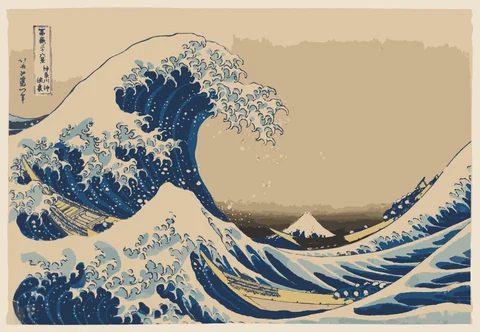
Woodblock print1830s, public domain
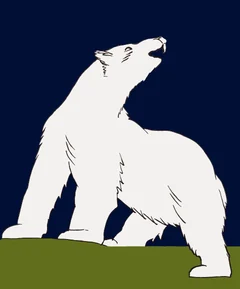
Poster1930s, public domain
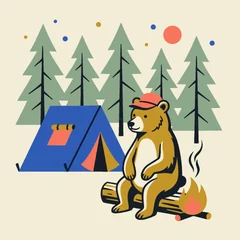
Clip artAI-made
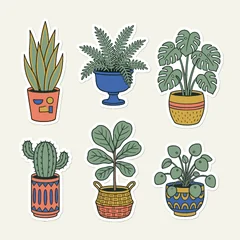
Sticker sheetAI-made
PhotosPhotos work too, but they come out as lots of small shapes.
Step by step
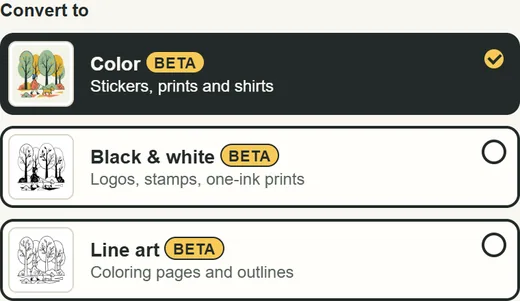
Pick Color
Color keeps the colors. Black & white and Line art give you a single layer.
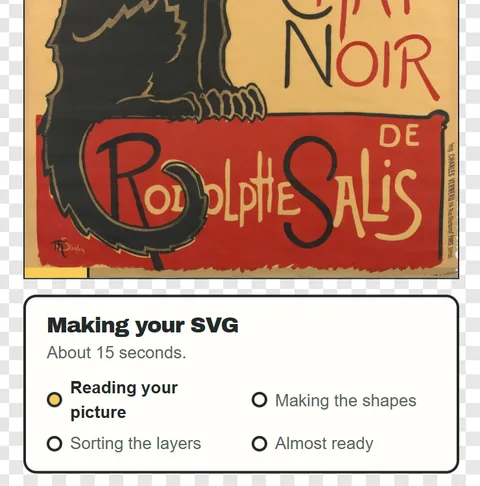
Upload your PNG
Drop it on the page or paste it with Ctrl+V. PNG, JPG or WebP, up to 10 MB.
Zoom in on the preview
The preview is free. Zoom to 400 % where two colors meet before you keep the picture.
Keep it
Press "Unlock this picture" once it looks right. If you're not signed in yet, the button says "Sign in to open free" and you sign in at this step. Your first 10 pictures are on us.
All layers 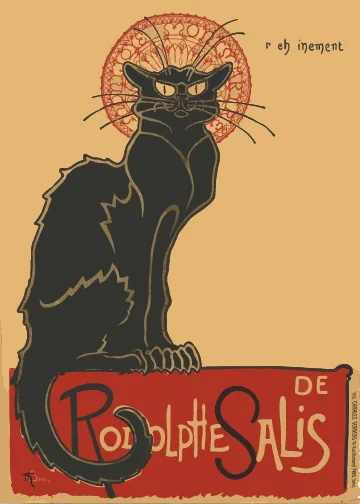
Letters hidden Look at the layers
Hide a layer to see what's under it. Here the letters are hidden.
Before 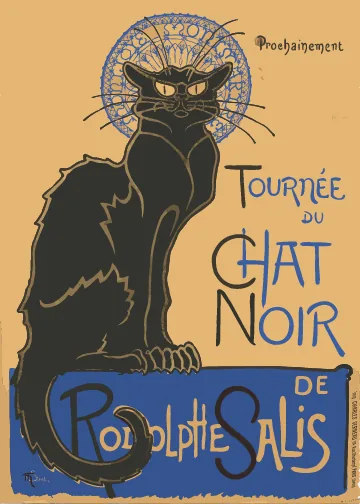
Reds to blue Change a color (optional)
Pick a color in the bar and change it everywhere at once. Here the reds turned blue.
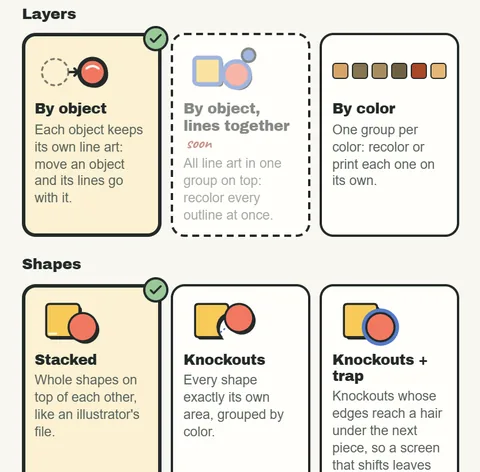
Download
Pick "By object" to get separate things in their own groups, or "By color" for one layer per color.
-
Now your picture
Drop a PNG or JPGPNG, JPG or WebP, up to 10 MB. Or paste with Ctrl+V.- Preview free, no card. Your first 10 pictures are on us.
- The preview needs no account. You sign in when you keep a picture.
- We delete your upload after 24 hours and never use your pictures to train our models.
Open it in Illustrator
Open the SVG in Illustrator and the Layers panel shows your groups, with their colors and lines inside.
A standard SVG: opens in any app that reads SVG.
If something looks off
A white line between two colors
Zoom the preview to 400 % where they meet. If you see a gap, tell us.
Too many tiny pieces
You get that from photos and small, blurry pictures. Start from the biggest version you have, or try Black & white.
One color is a little off
Click it in the editor and pick the right one. Every shape with that color changes with it.
Questions
Can you convert a PNG to an SVG?
Yes. An SVG holds shapes instead of pixels, so it stays sharp at any size and you can edit each part.
Can I convert a PNG to an SVG for free?
The preview is free for every picture and needs no account. Your first 10 pictures are free to keep.
Will I lose quality or color?
The SVG stays sharp when you zoom in or print it big. You get the picture's colors as flat colors, so you can change each one.
Can I open the SVG in Illustrator, Inkscape or Canva?
A standard SVG: opens in any app that reads SVG. We checked the layers in Illustrator.
Does it work with a JPG or a photo?
JPG and WebP work the same way as PNG. Photos work too, but they come out as lots of small shapes. Flat pictures give cleaner layers.
What's the difference between PNG and SVG?
A PNG is a grid of pixels and gets blurry when you enlarge it. An SVG is made of shapes: it stays sharp at any size, and you can change each shape.
Pictures in this guide
Théophile-Alexandre Steinlen, Tournée du Chat Noir, 1896. Van Gogh Museum, public domain. The SVG, the close-ups and the edits are our results.
Katsushika Hokusai, Under the Wave off Kanagawa, 1830s. Art Institute of Chicago, public domain. The polar bear: Federal Art Project (WPA), public domain.
The bear by the campfire and the houseplant stickers are AI-made clip art.
More: the layered SVG converter, examples taken apart and the online SVG editor.