How to separate colors for screen printing
The short answer
One film per ink. Turn your design into an SVG with one layer per color, fill each layer black and print it on clear film. On a white shirt the white is the shirt, so it gets no film.
The preview is free and needs no account. Your first 10 pictures are on us.


Count your inks
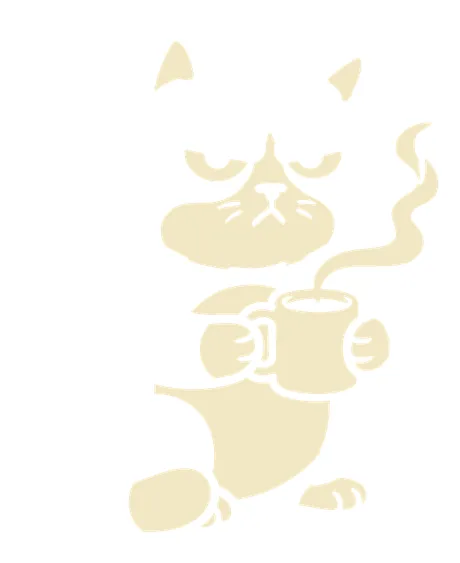
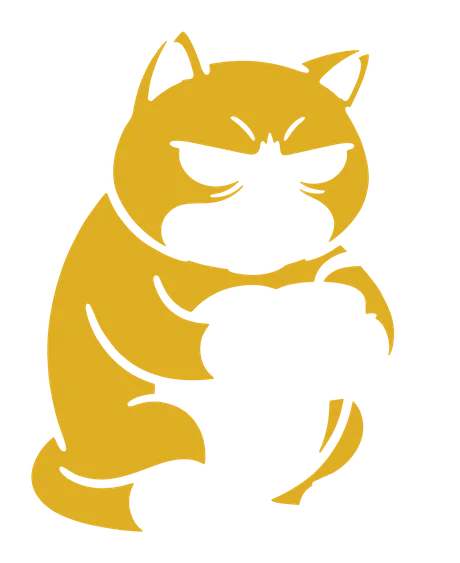
Each ink color needs its own screen, and each screen needs its own film. This cat has three inks: cream, mustard and black.
The white around it is the shirt. You don't print it, so it gets no film.
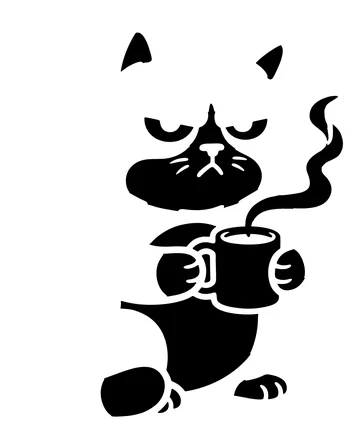 film
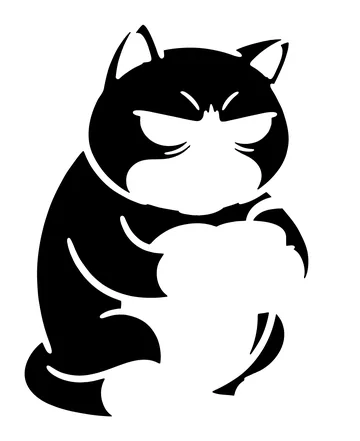 film
 film
Which designs work best
Flat colors with clear edges: shirt graphics, logos, cartoons, clip art. Three to five inks is a good start. Use the biggest version of the design you have.
Photos and soft color fades don't split into a few flat colors.
Step by step
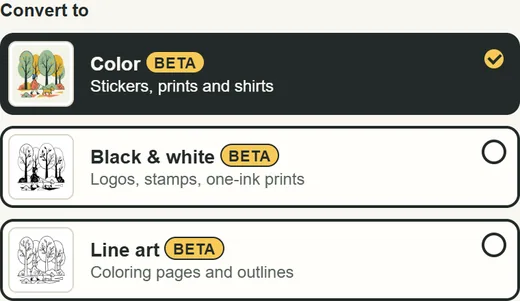
Pick Color
Color keeps every ink color.
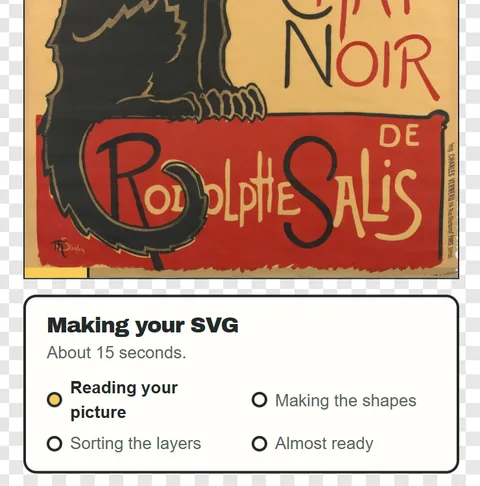
Upload your design
Drop it on the page or paste it with Ctrl+V. PNG, JPG or WebP, up to 10 MB.
Check the colors
The Colors bar under the picture lists every color in the file. Here: cream, mustard, black and white.
Count them before you burn screens. The white is the shirt, so that leaves three films.
Keep it
Press "Unlock this picture" once it looks right. If you're not signed in yet, the button says "Sign in to open free" and you sign in at this step.
Download it for screen print
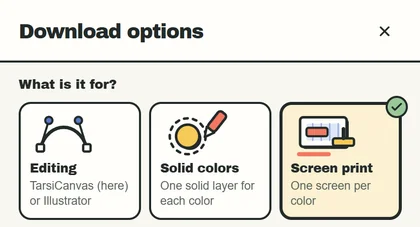
Open Download options and pick Screen print. It sets the rest: one layer per color, knockouts + trap, no background, and a shirt-size file (280 mm wide). Then Save and download.
cream mustard black Fill each layer black
Open the SVG in Inkscape. The Layers panel shows one layer per color, named by its color code. Select everything on a layer and give it a black fill.
Print one film per ink
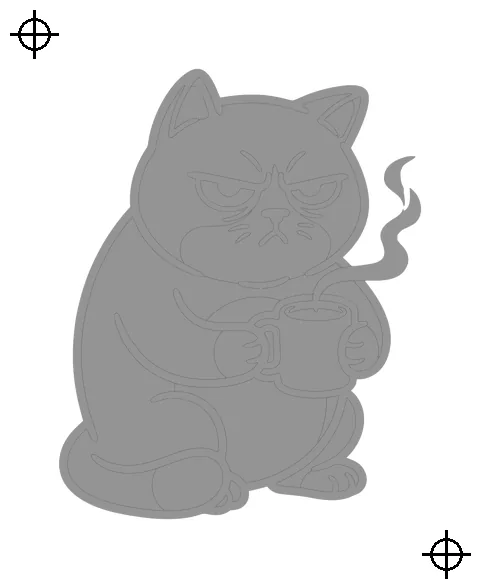
Show one layer at a time and print it on transparency film. Put a registration mark in two corners, on a layer of its own, and leave that layer showing for every film so the screens line up.
-
Now your picture
Drop a PNG or JPGPNG, JPG or WebP, up to 10 MB. Or paste with Ctrl+V.- Preview free, no card. Your first 10 pictures are on us.
- The preview needs no account. You sign in when you keep a picture.
- We delete your upload after 24 hours and never use your pictures to train our models.
Open it in Inkscape
Open the Screen print SVG in Inkscape and the Layers panel shows one layer per color. Each layer is one screen.
We checked this file in Inkscape. It's a standard SVG, so other apps open it too.
If something looks off
A thin gap between two inks on the shirt
The Screen print file already tucks each color a hair under the next one, so a small shift doesn't show. If you still see a gap, check that the registration marks line up on every screen.
One color is a little off
Click it in the Colors bar before you download and pick the right one. Every shape with that color changes with it.
Questions
How many films do I need for screen printing?
One per ink color. A white shirt doesn't need a film for white: the white parts are the shirt.
Why are the films black?
Black blocks the light when you expose the screen, so the emulsion under it washes out and the ink goes through there. Any solid, dark fill works; black is the safe one.
What does "knockouts + trap" mean?
Each color only sits where it shows, and its edges reach a hair under the next piece. If a screen shifts a little, you don't see a gap.
Can I do this for a dark shirt?
You'd need a film for the white parts too, and most printers add a white layer underneath. This guide sticks to a white shirt.
Can I separate colors for screen printing for free?
The preview is free for every picture and needs no account. Your first 10 pictures are free to keep, Screen print download included.
Does it work with a JPG?
Yes, JPG and WebP work like PNG. Use the biggest version of the design you have.
Pictures in this guide
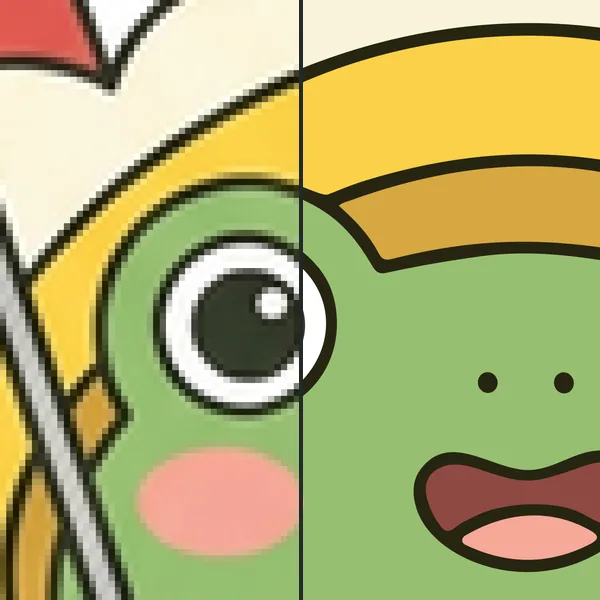
The cat, the frog and the Mochi & Crumb logo are sample pictures for these guides. Mochi & Crumb is a made-up name, not a real brand. The SVGs, close-ups and films are our results.
More: the layered SVG converter, how to turn a PNG into a layered SVG and the online SVG editor.